
Secure Code for Agribusiness
The Secure Code generator on the Rabobank Agribusiness AU app provides strong security and added convenience for our customers when accessing Internet Banking and authorising transactions.
Important: You will require an iOS or Android smart device to use the Secure Code generator.

Register for the Secure Code generator
Over the coming months, clients with existing Internet Banking access will be invited to transition from a physical RSA Token to a digital Secure Code.
How will you know when Secure Code is available for you? You’ll see a message pop-up in Internet or mobile banking asking you ‘Get Started’ to register for Secure Code. Until you see this pop-up message, you will not be able to transition to Secure Code.
Logging into your Mobile and Internet Banking
On desktop for Internet Banking: use your username, new password and a Secure Code generated by the mobile app.
Once migrated, logging into Internet Banking from a QR code will then be available from any registered device.
On mobile or tablet app: use your username and 6-digit mobile PIN or biometrics.
New account features
In your account, you are able to:
- Change your PIN or password
- Manage profiles and account details
- Authorise transactions using a Secure Code
- Transfer the Secure Code generator to a different device
Watch the video your way: You can pause or play the video at any time by clicking on the video. If you prefer to watch with captions, simply click the 'CC' button at the bottom of the video to turn them on.
Download our step-by-step how to guides
Trouble shooting tips:
- You will need an iOS or Android smart device to use the Secure Code generator.
- Ensure your mobile number is up to date before migrating to Secure Code. Check your contact details by logging in to Internet Banking and clicking the ‘Services and settings’ tab.
- Do not use a bookmarked or favorited link to access Internet Banking.
- If you experience a technical issue, please reach out using the Contact us details below.
Frequently asked questions
A Secure Code is a randomised 6-digit code generated in the Rabobank Agribusiness AU app. It replaces the need to carry a separate physical RSA token and provides a simple and secure way to verify it’s you when using Rabobank Internet Banking.
You’ll use your Secure Code alongside your username and password when logging in to Internet Banking and when authorising payments.
As the Secure Code is randomly generated, and in your hands, it adds an extra layer of protection and security to access your accounts. Each Secure Code is only valid for a short period of time before a new one is generated. When authenticating, you will need to enter the Secure Code and proceed before the code shown on the device expires and is replaced with a new one.
You should never share your Secure Code with anyone. No-one from Rabobank will ask you for your Secure Code.
There are two ways to register for Secure Code after you have been invited to transition and Get started:
- You can initiate this in Internet Banking and then complete in the Rabobank Agribusiness AU mobile app; or
- You can complete the registration entirely within the Rabobank Agribusiness AU app.
If you have logged in the Rabobank Agribusiness AU app on your mobile device and see Get started:
- To register for Secure Code, select Get started
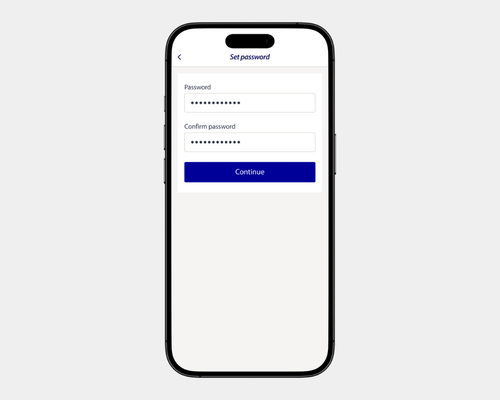
- Follow the prompts to create a Password
- You may be asked to create a PIN
- You are now able to access the Secure Code generator from the Rabobank Agribusiness AU app within the Security tab.
If you have logged in to Internet Banking from our website and see Get started:
- To register for Secure Code, select Get started
- Follow the prompts to create a Password
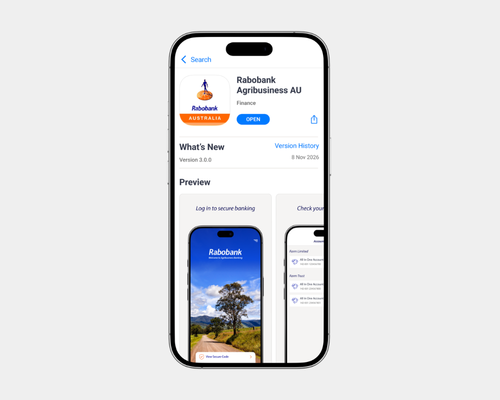
- Then go to your mobile device and open the Rabobank Agribusiness AU app (or download it from the Apple App Store or Google Play Store)
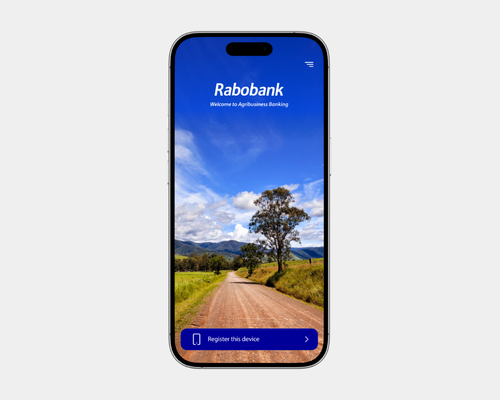
- Select Log into Mobile Banking or Register this device and follow the prompts to complete registration.
- You are now able to access the Secure Code generator from the Rabobank Agribusiness AU app within the Security tab.
Please note: To access the Secure Code generator using the Rabobank Agribusiness AU app, your device will require access to either mobile data or must be connected to the internet via a Wi-Fi connection.
Still have questions? Please see our step-by-step 'how to' guide and video available on this page.
Password requirements are:
- Must contain at least 8 characters
- Must include at least one capital letter, one lower case letter, one number, and one special character (for example, @#$)
Mobile App PIN requirements are:
- Must be a 6-digit number
- Must not contain any repeating digits (e.g. 1111)
- Must not contain any ascending or descending sequential numbers (e.g. 987654)
Please refer to our Rabobank Internet Banking Conditions of Use available here, for the steps you must take to protect your PIN and security credentials.
Your Password, Mobile App PIN and Secure Code are separate security features with their own requirements.
- Password: Used to log in to Internet Banking through a web browser
- Secure Code: Required for authentication when logging in to Internet Banking through a web browser and when making payments. Never share this with anyone.
- Mobile App PIN: Used to access the Rabobank Agribusiness AU app, unless you have enabled biometric authentication (such as Face ID or fingerprint recognition).
You will need to remember your Password and Mobile App PIN. The Secure Code is a temporary one-time 6-digit code generated within the Rabobank Agribusiness AU app and is only valid for a very short period of time before it automatically updates to a new 6-digit code.
The Rabobank Agribusiness AU app can be installed on a mobile phone (smart phone) or tablet.
On your IOS or Android device, navigate to either the Apple App Store or Google Play store, search for our app named Rabobank Agribusiness AU.
Follow the prompts to download the app.
To access the Secure Code generator using the Rabobank Agribusiness AU app, your device will require access to either mobile data or must be connected to the internet via a Wi-Fi connection.
Please note: The Mobile App cannot be downloaded to your desktop computer.
You are now able to register for Secure Code, a digital authentication code generator accessible in the Rabobank Agribusiness AU App. Having your code available in the Mobile App and on your smart device allows you to more easily complete your banking ‘on the go’.
If you already have a physical RSA token device, you will be able to transition to a digital Secure Code.
For more details on how to complete the registration process, please see the 'How can I register for Secure Code?' FAQ.
You can download the Rabobank Agribusiness AU app and register it on up to five mobile devices (e.g. smartphones or tablets) but only one device can have the functionality to generate the Secure Code.
If you wish to transfer your Secure Code to another device, follow the steps:
- Open the Rabobank Agribusiness AU app on the device you want to use to generate Secure Codes
- Navigate to ☰ and select Add profile
- Follow the steps and select Yes when asked to Transfer Secure Code?
If the device holding your Secure Code generator is lost or stolen, refer to 'What happens if I lose the mobile device that holds my Secure Code generator?' FAQ.
Please contact the Client Services team immediately to advise them of the lost device: Contact us.
They will be able to securely block the device and the Secure Code generator.
If you find your device or obtain a new one, you should download the Mobile App and follow the installation instructions to register the device again.
You will be able to continue your banking on your desktop computer using the Secure Code generated by the Mobile App. You will need the Rabobank Agribusiness AU app installed on your device. If you don’t already have the app, download it from the Apple App Store or Google Play Store. To access the Secure Code generator using the Rabobank Agribusiness AU app, your device will require access to either mobile data or must be connected to the internet via a Wi-Fi connection.
If the Rabobank Agribusiness AU app is compatible with your smart device (e.g. mobile phone or tablet), you will be able to download the app from the Apple App Store or Google Play store.
There are a range of reasons why you may be unable to download and use the Rabobank Agribusiness AU app. Reasons may include:
- Your device cannot access the Google Play Store (for Android devices) or Apple App Store (for iOS devices)
- Your device’s operating system (Android or iOS) version is too old or not supported. The minimum supported version of operating systems is the current and last 2 major versions of each operating system. This is in line with official support by Apple and Google.
- Your device has other apps installed that are preventing a secure connection to Rabobank (some VPN or monitoring apps may impact the security of connections and prevent the Mobile App from downloading).
If you are unable to download and use the Rabobank Agribusiness AU app, you could try:
- Ensuring your device can access the Google Play Store (for Android devices) or Apple App Store (for iOS devices)
- Checking available software updates for your device to ensure you are using the latest version (recommended to ensure the latest security features are always installed on your device)
- Ensuring that other services impacting secure connections (VPN services or other monitoring apps) are turned off.
If you are unable to register and use the digital Secure Code generator as you do not have access to a compatible mobile, we can discuss options with you. These may include accessing your accounts using a physical RSA token. Fees and eligibility criteria may apply.
To discuss your needs, please contact your Rural Manager or our Client Services team: Contact us.
If you have an active RSA token, you can complete the Secure Code registration process yourself using your computer and/or mobile device. You do not need to contact Client Services.
If your RSA token is lost, misplaced or damaged and cannot be used, please contact our Client Services team here for assistance. They will guide you through the Secure Code registration requirements.
Sustainable disposal of physical security token
When your RSA token is no longer needed, please dispose of it through an e-waste recycling service or via your local council's e-waste program. This map shows e-waste drop off locations around Australia.
Alternatively, please return your RSA token to your nearest branch and we will ensure it is passed onto our e-waste recycling provider.
Inclusivity and accessibility assistance
Rabobank is committed to providing banking services which are inclusive of all people. Calls from the National Relay Service are accepted by our Client Service team.
Please contact the Client Services team for accessibility assistance or visit our Inclusivity and Accessibility page for further information.