
Business day means a day that is not a Saturday, Sunday or an Australian national public holiday.
Regular payments from your deposit account are referred to as ‘direct debits’. This is where you have given your deposit account details (BSB and Account Number) to allow a merchant or service provider to debit your account regularly to pay for the services they provide to you.
Regular payments from your credit or debit card are referred to as ‘recurring payments’. This is where you have given your credit or debit card details (card number, expiry date and security code) to allow a merchant or service provider to charge your debit or credit card regularly to pay for the services they provide to you.
An outward direct debit is where Rabobank has received direct instructions from a client to debit a third party account with another bank and transfer those funds into a clients’ Rabobank account.
The request to cancel an outward direct debit needs to be received by Rabobank at least 1 business day prior to the next scheduled direct debit date and is subject to a 4pm processing cut-off time.
Farm & Agribusiness clients can:
Cancel their outward direct debit facility via Rabobank Internet Banking or Rabobank mobile app.
Please note:
If a client is experiencing financial difficulty and require help and support, please see website for more details here
An inward direct debit is where Rabobank has been authorised by the client to debit the client’s Rabobank account to satisfy a payment obligation to a merchant or service provider.
The request to cancel an inward direct debit needs to be received by Rabobank at least 3 business days prior to the next scheduled direct debit date.
To cancel an inward direct debit, clients can send their Cancellation of Direct Debit Authority request to Rabobank by one of the following methods:
- sending a secure message via Rabobank internet banking.
- completing and signing the Cancellation of Direct Debit Authority form and
- emailing it to Sydney.client.services@rabobank.com or
- mailing it to Reply Paid 4577, Rabobank Client Services, Sydney NSW 2001.
- contacting our Client Services Unit on 1800 025 484.
IMPORTANT: It may take up to 3 business days to action this request. Upon receipt of this form, Rabobank will notify the initiating Financial Institution that you wish to cancel this direct debit. This is a notification only. Rabobank does not directly cancel the direct debit and it is possible direct debits will continue until such a time as the cancellation is processed by the merchant or service provider. Therefore, you may also want to contact that merchant or service provider. Note that if you still owe the merchant or service provider for their service or utility, you’ll need to make alternate payment arrangements with them.
Please note:
- If a client is experiencing financial difficulty and requires help and support, please see website for more details here.
- To request a cancellation for recurring payments you have authorised on a Rabobank Visa Debit Card, you must contact the merchant or service provider directly.
The request to amend or cancel the automatic payment needs to be received by Rabobank at least 2 business days prior to the next scheduled automatic payment date.
Before the payment is scheduled to be occur, Rabobank Online Savings clients can cancel their Automatic Payment via Rabobank internet banking or the Rabobank mobile app.
Alternatively, clients can send their automatic payment request to Rabobank by:
- sending a secure message via Rabobank internet banking or via the Rabobank mobile app.
- contacting our Client Services Unit on 1800 445 445.
- completing and signing the Automatic Payment Request and emailing it to clientservicesau@rabobank.com
Please note:
- For Joint Holdings (which require all Joint account holders to sign or authorise), all Joint account holders will need to sign/authorise the automatic payment request by using the contact methods above.
- If a client is experiencing financial difficulty and requires help and support, please see the website here for more details.
Cut off times
Before 6pm (AEST/AEDT) - processed same day and will be received within 1 – 2 business days
After 6pm (AEST/AEDT) - processed next business day
Weekends and national public holidays - processed next business day.
Clearance times
If transferring funds to an external bank account before 6pm (AEST/AEDT), the funds will usually appear in that account within 1 – 2 business days.
Direct credits received from another financial institution are usually received and available within 1-3 business days.
Transferring funds in
When you open an account with us, you are asked to accept our online direct debit authority. This allows you to transfer funds into your Rabobank account from your linked bank account, all within our online banking system.
You can of course make deposits into your Rabobank account from any other bank account you hold, or have other people/organisations deposit funds into your Rabobank account. Just use the facilities of your other bank or provide your Rabobank account number to the other party.
As an online bank, it is not possible to make cash deposits.
Transferring funds out
When you withdraw funds they must always go back to your Linked Account.
Transfer instructions
To make a transfer in or out:
- Log into Rabobank Online Savings
- Click on 'Transfer money'
- Select the 'From' and 'To' accounts
- Enter the transfer details e.g. date and amount
- Confirm the transfer with your Secure Code
To log in to your Rabobank Online Savings Internet banking, follow these simple steps:
- Head to www.Rabobank.com.au
- Click on the orange 'Internet Banking' button on the top right corner of the screen, then select 'Online Savings '
- Enter your customer number (which can be found on your welcome information) and follow the instructions to login
Calling us through the Rabobank app now makes identifying you and getting help easier.
Once signed in:
- Tap the settings menu (☰) at the top right of the screen
- Tap Contact us and select the phone number you need.
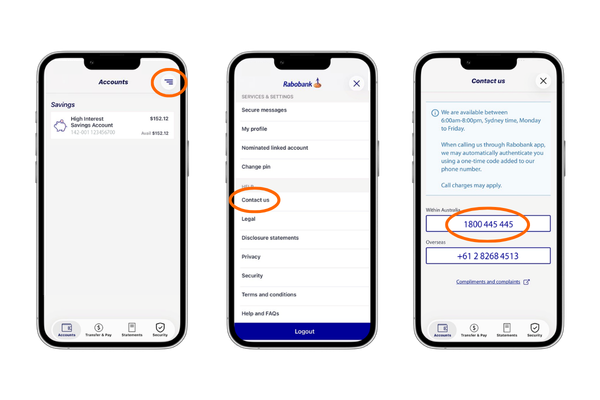
If you have a Farm Business Mobile Banking App. Click here for instructions
Follow these simple steps to register the Rabobank Online Savings app:
- Log in to internet banking to create a password if you do not have one. Visit our Secure Code Webpage for further instructions.
- Download and open the latest version of the Rabobank Online Savings AU app which is available from the Apple App Store or Google Play Store.
- Select 'Register for Secure Code’ and follow the instructions. During this process you will need to have your registered mobile number available.
Your Rabobank Online Savings Statements will be available each month via Online and Mobile banking.
- Log in to Internet or Mobile Banking
- Select the 'Statements' tab
- Select the ‘Statements’ option
- Select the account you wish to view statements for
- Select 'Download/Preview' on the right hand side of the month you are wishing to view the statement for.
To view your Interest and Annual Tax Statement, simply log into Internet or Mobile Banking and follow these three easy steps:
- Select the 'Statements' tab and select 'Interest and Tax'
- The financial years will populate for all accounts
- Select 'Download/Preview' link on the right hand side of the tax year you are wishing to view the statement for.
To view your transactions, simply log in to Internet or Mobile Banking and follow the steps below:
- Select the 'Accounts' tab
- Select the Account you wish to view transactions for (HISA, PremiumSaver, Notice Savers, Term Deposits)
- You can select the 'From Date' & 'To Date' for a maximum period of 12 months to view your transactions, once you have selected the period click 'Search' and your transactions will load on the screen.
Yes, you can download and register the Rabobank Online Savings app on up to 5 devices.
To update your details, simply log in to Internet Banking and follow the steps below:
- Select 'Services & Settings' from the left hand side menu.
- To update your contact details, select 'Contact Details' under the heading Profile Settings.
- Select 'Edit' on the right hand side to begin updating.
- After making your changes, click 'Submit' and follow the steps on the screen to authorise the changes with your Secure Code.
Rabobank's Online Savings app for Australia is available on the Apple App store for Apple devices and Google play store for Android devices. Simply search for the latest version by typing in "Rabobank Online Savings Mobile Banking AU" and follow the download prompts.
Once you've registered the Rabobank Online Savings AU app, use your PIN to log in and manage your savings wherever you are.
You can log out of the app by selecting ‘Log out’ from the slide menu or close the app. Please be aware that if you navigate away from the Rabobank Online Savings app without logging out your information may be visible to others with access to your phone.
It is not compulsory for you to provide us with your Australian Tax File Number however, if you choose not to*, we may be obliged by law to withhold tax on any interest paid or credited to you at the highest marginal tax rate plus Medicare levy and pay this to the Australian Taxation Office on your behalf to satisfy your expected tax liability.
* and we also do not have a valid tax exemption, or an ABN if applicable, from you.
To provide us with your Tax File Number, please contact us on 1800 445 445 between 6am and 7pm (Sydney time), Monday to Friday, or alternatively you can send us a secure message with the details by logging in to your Rabobank Online Savings account and clicking the blue envelope on the top right hand side of your screen.
To make a claim on all interest withheld from you, simply lodge it with your tax returns, or if you are in a position where you are unable to do so, please consult the Australian Tax Office or your Tax Agent.
If you have any questions, please call our friendly team and we'll be more than happy to assist.
If you've forgotten your mobile banking PIN, you can reset your registration from the app log in screen by tapping 'I forgot my PIN'. You'll be prompted to reset your registration using your customer number and Password (just like when you first registered for mobile banking).
If your access to the Rabobank Online Savings AU app has been blocked, you will need to call our team on 1800 445 445 Monday to Friday 6am-8pm
All Rabobank Online Savings Accounts have a $300,000 transfer limit out to the nominated linked account. We may offer a temporary transfer limit increase if you need to exceed this $300,000 limit. Please contact our team on 1800 445 445, Monday to Friday between 6am and 8pm (Sydney time) to increase your daily limit.
Where required, permanent transfer limit increases may also be arranged upon request. Please contact us for further information.
Rabobank Online Savings Transfer Limits (Individual, Joint, Business, Trust and SMSF)
| Transfers IN from Linked Account | $5,000,000 |
| Transfers OUT to Linked Account | $300,000 |
| Transfers between your Rabobank Accounts | Unlimited |
Yes, you can use the app while traveling if you have WIFI or have enabled mobile data and roaming.
Yes, you can register different customer numbers in one device (called profiles). To register or manage profiles, use the slide menu in the login page. For more details refer to this link.
You can close any accounts you hold with Rabobank Online Savings in one of two ways, however all options require you to have a nil or very minimal balance before we can proceed with your request.
- The first option, you can call us on 1800 445 445 between the hours of 6am – 8pm Sydney time.
- The second option, if you can login to your account, you can send us a secure message with a brief explanation of your request. You can find the secure message option by clicking on the envelope icon in the top right corner. Please note: If we receive a secure message with a closure request, we can process your request without having to call you for further verification.
For more information about closing your account:
For Rabobank Australia loan related accounts, please contact your Rural Manager or visit a branch located on our website. You will need to provide a request in writing that is signed by all account holders and security providers. The attached form may be used to assist with this process. Once all of the information required has been received, we will close your account as soon as practicable, and generally within 6 weeks from receipt of all of the required information.
For all other Rabobank Australia accounts, please call us on 1800 025 484, or if you are overseas on (+612) 8268 4513 between the hours of MON-FRI 6 a.m. – 8 p.m. (Sydney time). You may also contact your local branch. For Deposit accounts, we will generally close the account within 5 days once all required information is received.
Mistaken Payments
Business day means a day that is not a Saturday, Sunday or an Australian national public holiday.
Direct Debit
A Direct Debit will have been set up from one of your bank accounts such as a savings or transaction account. If you need to cancel a direct debit, you can ask us to cancel your Direct Debit and we will action this promptly.
Recurring Payment
A recurring payment will have been set up from your credit card or debit card. If you set up a recurring payment, you’ll need to contact the merchant or service provider directly to cancel this type of payment.
Online: Log in to your Rabobank account and request the list.
Over the phone: Call Rabobank's Client Services and ask for the list.
In-person: Visit a Rabobank branch and request the list.
The list will include direct debits and recurring payments from the past 13 months, based on the transaction information Rabobank has received.
You can ask us to cancel your Direct Debit, and we will process this promptly.
Note: For Recurring Payments (via debit or credit card), you must contact the merchant or service provider directly to cancel.
If you believe there is an unauthorised Direct Debit, you can ask us to investigate, and we will act promptly to assist you.
For more information or assistance, please contact us here.
Your Rabobank Internet Banking registration kit includes an explanation of the registration process.
You will be asked to call us on a special phone number to confirm receipt of your kit before your login is activated.
To make payments to another financial institution's account using Rabobank Internet Banking you will need to provide the following payee information:
- BSB (Bank State Branch) number
- Account name
- Account number
Rabobank BSB is 142-001
Rabobank Swift code for rural clients is RABOAU2B
Please call our Internet Banking InfoLine as soon as possible on 1800 025 484 (or +61 2 8115 2240 if calling from outside Australia) between 8am and 6pm, Monday to Friday, Sydney time.
If you have forgotten your Username or PIN, or wish to change your PIN at any time, please call our Rabobank Internet Banking InfoLine on 1800 025 484 between 8:00am and 6:00pm Monday to Friday, Sydney time.
If you have any queries please contact our Rabobank Internet Banking InfoLine on 1800 025 484 (or +61 2 8115 2240 if calling from outside Australia) between 8.00am and 6.00pm Monday to Friday, Sydney time. Alternatively you can contact the Client Services Unit by email sydney.internet.banking@rabobank.com.
If you have forgotten your Username or PIN or wish to change it at any time please call our internet banking InfoLine on 1800 025 484 (or +61 2 8115 2240 if calling from outside Australia) between 8am and 6pm Monday to Friday, Sydney time.
The new PIN is effective upon issue and can be used immediately.
Future-dated transactions that display in the (Payments pending authorisation table on the Payments main screen) and have an appropriate action along side them can be cancelled via the internet prior to the date they take effect. For transactions dated today, once the transaction has been confirmed it cannot be cancelled via the internet.
Contact your company's network administrator.
You may request a transaction at any time, however the applicable cut-off time will affect the date on which the transaction is processed.
The following cut-off times apply:
- All Payments (including BPAY)
Payments confirmed before 6pm (Sydney time) Monday to Friday will be processed on the same business day.
Please allow up to 2 business days for the payment to be received by the Payee.- Transfers
Transfers between your own accounts will be processed in real time (business days only – internal transfers completed on a non-business day will be processed on the next business day) . Exception periods are during overnight processing and maintenance periods.
- Rate Bookings
Rate Bookings confirmed before 4pm (Sydney time) Monday to Friday will be processed on the same business day.
You can your notifications on or off.
Select your preferences for each notification type.
- Internet banking notification
To change the preference for your mobile notifications, please do this via the mobile app.
You can view your session summary details, and the session summary details of your delegated users.
You can view the details of your last 20 Internet banking sessions.
You can view the Rabobank internet banking conditions of use.
You can update your:
- Home phone
- Business phone
- Mobile
- Email address
Please note: Changing your personal details in internet banking will not change your client or statement details elsewhere within the bank. To change your client or statement details please contact Rabobank Client Services on 1800 025 484 (6:00am - 8:00pm Monday to Friday, Sydney time).
You can find a list of your previously saved batch templates here.
To use a template click 'Use template'.
If you no longer need the template, then you can click 'Delete'.
[[video1 title="Watch 'how to' video"]]
[[video2 title="Watch 'how to' make BPAY payments"]]
You can also follow these steps.
To view your upcoming payments:
- Select the account you want to view
- The upcoming payments will be displayed
- Click on 'Actions' to either
a. View the confirmation of the payment
b. Delete the upcoming payment
[[video1 title="Watch 'how to' video"]]
[[video2 title="Watch 'how to' make BPAY payments"]]
You can also follow these steps.
Your Payees & Billers are linked to an entity, and all Account owners and Delegated users who can access an Entity can view, edit or delete these shared payees
Payees
This screen displays a list of all your payees.
You can view, edit or delete a payee.
- Click on the Payee you want to action
Edit:
a. Modify their details and click 'Update'
b. Some updates to payee information require the payee to be re-authenticated
Delete:
a. Click 'Delete'
b. Confirm you want to delete the payee
Unauthenticated payees
You can now bulk authenticate your payees.
If you have any payees that are unauthenticated, when you try to make a payment or go to the 'Manage Payees' screen you will see a message: 'You have unconfirmed payees…'
To authenticate:
- Click on 'authenticate them here.'
- A list of the unconfirmed payees are listed
a. To confirm, enter in your PIN + Token code and click 'Confirm'
i. The payees will then appear in your payee list
b. If you click 'X', you will be taken back to your payee list
c. If you click 'Cancel', a 'Cancel authenticating payee(s)' message will appear
i. Click 'No' – you will be returned to the list of unconfirmed payees
ii. Click 'Yes' – to delete the unconfirmed payees - Please note: You cannot make a payment or add a new payee until unconfirmed payees have been authenticated or deleted.
[[video1 title="Watch 'how to' video"]]
You can also follow these steps.
Batch payments enable you to make payment from one of your accounts to multiple third party accounts in a single transaction e.g. paying employee wages or paying multiple accounts to the same payee.
Batch payments can be submitted for processing on today's date (before 6PM – Sydney time) or they can be dated in the future. If your batch is future-dated it will remain with a status of pending until the morning of the payment date. All payments within a batch are paid on the same date.
[[video1 title="Watch 'how to' video"]]
You can also follow these steps.
To make a new batch payment:
- Select the payees to add to the batch (You can also add a new payee)
- Click 'Add to batch'
- Enter in a description
- Enter in an amount
- Click 'Continue'
- Select the account you want to make the batch payment from
- Verify the number of payees, and the total amount.
a. If this is incorrect, click on 'Edit details' - Enter in a batch description
- Select the date the payment is to be made
- Choose how you want to make the payments:
a. Multiple: Individual payments
b. Single: One bulk payment - Select 'Save template' (Optional)
a. Use this if you will use this batch payment again. You will be able to use the same template in the future. - Click 'Continue'
- Check the payment details
- Click 'Confirm'
- Batch payment has been submitted/scheduled.
[[video1 title="Watch 'how to' video"]]
You can also follow these steps.
You can import a compatible batch file from your accounting software such as Xero.
You can only import files of format .aba or .txt
To import a batch file:
- Click 'Browse'
- Select the file from your file browser
- Click 'Upload'
- The file will be validated, and if there are any errors, the errors will be displayed.
a. To continue uploading, please fix the errors in your accounting software and re-upload - After successful upload, the Payee details will be displayed including payment description & amount.
a. Please note: The imported details cannot be edited. To edit the details, please edit in your accounting software and re-upload the file. - Click 'Continue'
- Select the account you want to make the batch payment from
- Verify the number of payees, and the total amount.
a. If this is incorrect, click on 'Edit details' - Enter in a batch description
- Select the date the payment is to be made
- Choose how you want to make the payments:
a. Multiple: Individual payments
b. Single: One bulk payment - Click 'Continue'
- Check the payment details
- Click 'Continue
- You will need to authenticate the payment.
- Enter in your PIN + token code
- Click 'Confirm'
- Batch payment has been submitted/scheduled.
[[video1 title="Watch 'how to' video"]]
You can also follow these steps.
Here you can view the status of your batch payment.
| Status | Status Description |
| New | New batch payment initiated and pending to be submitted |
| Submitted | Batch payment submitted by requestor |
| Pending authorisation | New batch submitted and awaiting authorisation |
| Rejected | Batch payment rejected by authoriser |
| Cancelled | Batch payment cancelled due to cut off time passed |
| Failed/Incomplete | Batch payment failed due to system error |
| Completed | Batch payment successfully posted |
| Delete | Deleting a successfully submitted future batch payment |
Here you can edit batches you have created through internet banking. To access this screen, click on the ‘actions’ button on the far right-hand side of the batch you are wanting to change, then click ‘edit’.
- Editable fields:
- Payment Amount
- Payment Description
- Batch Description
- Batch Date
- Transaction Type
- Add/Remove Payees
You are unable to use the edit functionality to modify imported batch payment files.
[[video1 title="Watch 'how to' video"]]
You can also follow these steps.
When adding a payee, please check the BSB and account number you have entered. Payments made to the wrong account as a result of you entering an incorrect BSB or account number may not be able to be recovered.
You can add a Payee by:
- Clicking on 'Manage payees and billers' then 'Add payee(s)'
- Clicking on 'Pay anyone' then 'Add payee(s)'
After clicking on 'Add payee(s)', the add payee form is loaded:
- Enter in Account name
- BSB
- Account number
- Payee description (optional)
You can add another payee or click 'Continue'.
Once you have added all your payee(s), you will need to authenticate them before you can make a payment.
- You will be prompted to enter in your passcode (PIN + Token code)
- Click 'Confirm'
- Payees will now be added to your payee list.
[[video1 title="Watch 'how to' video"]]
You can also follow these steps.
After 6PM (Sydney time), payments must be future dated.
Future dated and recurring payments require cleared funds to be available the business day before the payment is due.
To make a BPAY Payment:
- Select the biller you want to pay
- Select the account you want to make the BPAY payment from
- Enter in the payment amount
- Enter or select the date you want to make the payment
- Select the frequency
- Click 'Continue'
- Check the payment details
a. If the payment requires further authorisation
i. Click 'Continue'
ii.Select the authoriser/s you want to notify
iii.Click 'Send for Approval'
b. If the payment does not require further authorisation
i. Click 'Confirm' - Confirmation receipt is displayed.
- Click 'Done' or 'Another BPAY payment' to make another payment.
[[video1 title="Watch 'how to' video"]]
You can also follow these steps.
You can add a BPAY biller by:
- Clicking on 'Manage payees and billers' then 'Add a biller'
- Clicking on 'BPAY payment' then 'Add a biller'
To add a new Biller:
- Click 'Add a Biller'
- Enter a Biller code
- Biller matching that code will appear. Select the Biller
- Enter in your CRN
- You can also enter in a personalised biller name (like a nickname for your bill)
- Select the entities you want to associate with the Biller
- Click 'Add'
- The Biller will now be available in your biller list
[[video1 title="Watch 'how to' video"]]
You can also follow these steps.
Rate bookings are only available to Account Owners.
Select an account, to view:
- Available interest rates
- Current interest options
- Future/pending bookings
To book a fixed rate:
- Click 'Book fixed rate'
- Enter Effective date
a. The Available amount to fix will automatically update if a future date is entered - Enter in the amount you would like to fix
- Select the term (Please note: Rates shown are all inclusive, including agreed margin for this account)
- Click 'Continue'
- Check the book fixed rate information
- Click 'Confirm'
- Rate booking has been submitted
[[video1 title="Watch 'how to' video"]]
You can also follow these steps.
Pay anyone is used to transfer money to third party accounts.
You will need to add and authenticate your payee before making a payment.
To make a transfer to a third party:
- Select the payee in your payee list
- Select the account you want to make the payment from
- Enter payment amount
- Enter a payment description – this description may appear on your payee's statement depending on their financial institution
- Enter the date the payment is to occur
- Select the frequency
a. Once
b. Recurring
i. Select the frequency
ii. Select the end date or 'until I cancel' - Click 'Continue'
- Check the payment details are correct
- Click 'Confirm'
- Confirmation screen is then displayed
- You have the option to email a copy of the confirmation to your email address and to your payee's email address
- If Authorisation is required, a list of approvers is displayed.
a. Selecting an authoriser will send a notification that a payment is awaiting their approval.
Cut off times for payments
Payments confirmed before 6PM (Sydney time) Monday to Friday will be processed on the same Business day.
Please allow up to 2 Business days for payments to be received by Payees.
[[video1 title="Watch 'how to' video"]]
You can also follow these steps.
Statements can only be accessed by Account owners.
Up to 5 years of statements can be viewed in PDF format. They are available for each individual entity, and include all accounts in that entity.
To search and view your eStatements:
- Select the entity you want to view the statements for
- Select the time period you want to view statements for
a. You also have the option to enter in a custom date range - A list of statements will appear matching the time period selected
[[video1 title="Watch 'how to' video"]]
You can also follow these steps.
To log into Rabobank Internet Banking you will need your Username, PIN and Token. You can obtain these by calling the Client Services Unit on 1800 025 484.
Once obtained, you can loginby selecting Rabobank Internet Banking. If you experience any issues when signing in, please call Client Services Unit on 1800 025 484 for assistance.
[[video1 title="Watch 'how to' video"]]
You can also follow these steps.
Your Account summary is displayed after you successfully sign in.
It displays the following information for your accounts:
- Account number
- Description (i.e. account type)
- Balance
- Available balance
- Loam limit (if applicable)
- Temporary increase amount & expiry date (if applicable)
Click on an account number or description to see further detail.
[[video1 title="Watch 'how to' video"]]
You can also follow these steps.
Secure messages provides you with the ability to send and receive messages directly with Rabobank Client services team.
You can:
- Send a new message
- View sent messages
- View received messages
To send a new message:
- Click 'New message'
- Select the account you want to send an enquiry about or select 'none' for a general message
- If you select an account, you will need to select a topic
a. Account enquiry
b. Transaction enquiry
c. Fixed rate break quote (depending on the account selected, and will only appear for Account owners) - The message box will pre-populate with information depending on the topic selected
- Enter in your message and click 'Send'
- You can view your sent messages in the 'Sent' tab
[[video1 title="Watch 'how to' video"]]
You can also follow these steps.
To be eligible for our Rabobank Internet Banking, you will need to hold an All In One Account & Cash Management Accounts.
To organise access to Rabobank Internet Banking, complete an Account Operating Authority form. For assistance please contact your local area manager on 1300 30 30 33 between 6am to 8pm Monday to Friday Sydney time. (+61 2 8115 2240 if calling from outside Australia).
Using our Rabobank Internet Banking you can export a transaction list from your computer to financial management software such as AgriMaster™, CA$hmanager Rural™, Phoenix™, Quicken™** and MYOB™.
You can also import payments and batch templates from financial packages as above to your computer.
Export files produced are in a CSV (Comma Separated Value) or QIF format.
Batch payment or import files must be in an ABA format.
Please contact your software supplier to check if your financial management software is compatible.
**Intuit Inc., USA, is the owner of intellectual property rights in the name 'Quicken'.
The turnaround time is usually 7-10 business days.
Takes you to secure messages, where you can request a break quote for a selected account.
Subject to agreement by all account owners you can permit others to access, view or transact on your account. For more information on how to register a Delegated User you can call our Rabobank Internet Banking InfoLine on 1800 025 484 (between 8am and 6pm Monday to Friday, Sydney time).
Rabobank charges a $30AUD fee. Margin rates also apply to currency conversion.
Beneficiary and intermediary banks may charge fees which are deducted from the payment.
To request an International transfer:
- Select the account you want to make the payment from
- Enter the Foreign currency (3 letter code e.g. EUR, GBP, NZD)
- Enter the payment amount in the Foreign currency amount or AUD amount
- Enter the Reason for payment
- Enter the Beneficiary details
- Enter the Beneficiary's bank details
- Click 'View terms and conditions' to review the International transfer terms and conditions
- Select 'I accept the Rabobank Internet Banking conditions of International Funds Transfer'
- Click 'Continue'
- Review the transfer details
- Click 'Confirm'
- Transfer request confirmation is displayed.
Our Rabobank Internet Banking provides secure online access to your accounts.
You can:- View up-to-date details of your accounts including account summary, transaction history (for up to 18 months on some accounts), current Fixed Interest Options and electronic copies of your account statements.
- Request transactions (subject to cut-off times) and make enquiries 24 hours a day, 7 days a week.
- Make payments from your accounts to third party accounts.
- Set up your own payee lists.
- Transfer funds between your accounts (subject to cut-off times).
- Book Fixed Interest Options up to 10 business days in advance.
- Import and export payment files from your financial management software.
- Make temporary principal reductions on some loan accounts.
- Enquire about your accounts via our secure Mail service.
- Manage and impose restrictions on your own Delegated Users.
Our Rabobank Internet Banking is free for business accounts.
There is no charge to register and currently there are no bank transaction fees or bank fees for using the service, for business accounts.The costs of your internet access (via your Internet Service Provider) are your responsibility.
Our Rabobank Internet Banking can be used 24 hours a day, 7 days a week subject to availability of the system (eg. Internet outage, maintenance outage etc) and availability of your ISP connection.
Only available to Account owners.
Here you will see a list of your Entities and users linked to that entity.
You can manage the permissions for your delegated users.
- Click on 'Manage permissions' next to the delegated user
- Enable account access
a. Yes
b. No - Enter in the Daily limit the user is authorised to perform
- Set the level of access for each transaction type.
None Delegated user does not have access to account View Delegated has view access only to account, unable to perform any transactions Input Delegated user can create transaction type, but authorisation is required Authorise Delegated user can create transaction type, up to the daily limit and authorise - Click 'Save'
On the transfer and pay screen, you can
- Move your money
- View upcoming payments
- Manage payees and billers
If the funds have not dishonoured back to your account within 48hours, then you can contact the Client Services Team to request a trace and recall. Please note: The trace and recall incurs a $60 fee to initiate and it can take up to 6 weeks to hear back from the other financial institution involved.
Here you can request for statements to be sent to your email address.
- Select the account
- Check and update (if required) the email address you want the statements to be sent
- Read and accept the terms and conditions
- Click 'Send'
The request will be sent to Client Services.
For more information about closing your account:
For Rabobank Australia loan related accounts, please contact your Rural Manager or visit a branch located on our website. You will need to provide a request in writing that is signed by all account holders and security providers. The attached form may be used to assist with this process. Once all of the information required has been received, we will close your account as soon as practicable, and generally within 6 weeks from receipt of all of the required information.
For all other Rabobank Australia accounts, please call us on 1800 025 484, or if you are overseas on (+612) 8268 4511 between the hours of MON-FRI 6 a.m. – 8 p.m. (Sydney time). You may also contact your local branch. For Deposit accounts, we will generally close the account within 5 days once all required information is received.
Ensure that you are entering the correct Token, Username, PIN and Token Code, remembering that the Token Code is different each time you log in.
The first time you log in to Internet Banking you are required to change your PIN. Ensure that you are using the correct PIN.Annual interest statements are issued once a year in mid August.
Account transfer is used to move money between your Rabobank accounts, or a nominated account.
To make a transfer:
- Select the account to debit funds from
- Select the 'To' account
- Enter payment amount
- Enter a payment description – this description will appear on your statement
- Enter the date the payment is to occur
- Select the frequency
a. Once
b. Recurring
i. Select the frequency
ii. Select the end date or 'until I cancel' - Click 'Continue'
- Check the payment details are correct
- Click 'Confirm'
- Confirmation screen is then displayed
- You have the option to email a copy of the confirmation to your email address
a. If the email address that appears is incorrect, you can update your email by going to Services & Settings - My profile - If Authorisation is required, a list of approvers is displayed.
a. Selecting an authoriser will send a notification that a payment is awaiting their approval.
Account activity provides access to your Transaction history.
You can also rename your account with a nickname - so that you can easily distinguish between your accounts. This nickname will only be used in the context of your internet banking.
Transaction history
Displays a list of transaction for your accounts over a specific period of time.
You can search your transactions by description or amount. If you want to search for specific transactions, click on 'Advanced search' for more options.
Within advanced search, you can search by:
- Transaction type
- Amount range
- Search text within a description
- Or a combination of the above
Export transactions
To export your transactions:
- Click 'Download'
- Select the file format you want to export
- Click the 'Download' button
Cut off times
Before 6pm (AEST/AEDT) - processed same day and will be received within 1 – 2 business days
After 6pm (AEST/AEDT) - processed next business day
Weekends and national public holidays - processed next business day.
Clearance times
If transferring funds to an external bank account before 6pm (AEST/AEDT), the funds will usually appear in that account within 1 – 2 business days.
Direct credits received from another financial institution are usually received and available within 1-3 business days.
RTGS (Real Time Gross Settlement) request cut-off times
- RTGS payments allow high-value same-day transfers.
- Cut-off time: Requests must be received by 3pm (Sydney time) for same-day processing.
- Important: Some RTGS requests may require a call-back for verification, which can delay processing. To avoid delays, we recommend submitting your RTGS form at least 3 hours prior to the cut-off time (by 12pm Sydney time).
Form request cut-off times
Unless otherwise stated, all forms must be signed and returned to the email address detailed on the form before 4pm Sydney time (AEST/AEDT) for same-day processing.
Please refer to the below table for all exceptions.
To clarify, the internal processing cut-off time for same day processing is 4 pm. Some payment requests may require a call-back for verification.
Tip: To allow enough time for internal checks and processing, it’s best to send payment requests well ahead of the cut-off times. This helps avoid delays and ensures your payment goes through on time.
| Request Type | Request Cut-off Time | Notice Period (see description below this table) |
| Automatic Payment Request Amendment or Cancellation Authority | 4pm | 2 business days |
| Cancellation of Direct Debit Authority | 4pm | 3 business days |
| Term Deposit and Term Farm Management Deposit Break Request (Early Withdrawal) | 3pm | 31 days |
| Direct Debit Request | 4pm | 24 hours |
| Loan Break Cost | 3pm (Request Only) | - |
| Rabobank Adviser Services Transfer of Funds Request | 1pm (Bulk Only) | - |
| Request for International Telegraphic Transfer | Refer to table below for currency specific cut-off times | - |
Notice Period*
This is the period of time that must pass before the request is completed. If you make the request on or before the cut-off time, that day is not included in the notice period. If you make the request after cut-off time, the next business day is not included in the notice period.
Business Day
Business day means a day that is not a Saturday, Sunday or an Australian national public holiday.
- Business Days – Direct Entry (“DE”), Real-time gross settlement (“RTGS”), and Property Exchange Australia (“PEXA”) transactions are available.
- Non Business Days – Direct Entry (“DE”), Real-time gross settlement (“RTGS”), and Property Exchange Australia (“PEXA”) transactions are not available.
Clearance Times
If making a payment to an external bank account before 6pm (Sydney time), the funds will usually appear in that account within 1 – 2 business days. Direct credits received from another financial institution are usually received and available within 1-3 business days.
Request for International Telegraphic Transfer
| Foreign Currency | Currency Code | Cut-off Time |
| HongKong Dollar | HKG | 11am |
| Japanese Yen | JPY | 11am |
| New Zealand Dollar | NZD | 11am |
| Singapore Dollar | SGD | 11am |
| Australian Dollar | AUD | 2.30pm |
| Canadian Dollar | CAD | 2.30pm |
| Danish Kroner | DKK | 2.30pm |
| Euro | EUR | 2.30pm |
| British Pound | GBP | 2.30pm |
| Norwegian Kroner | NOK | 2.30pm |
| US Dollar | USD | 2.30pm |
| Swiss Franc | CHF | 2.30pm |
Switching Service
Business day means a day that is not a Saturday, Sunday or an Australian national public holiday.
Direct Debit
A Direct Debit will have been set up from one of your bank accounts such as a savings or transaction account. If you need to cancel a direct debit, you can ask us to cancel your Direct Debit and we will action this promptly.
Recurring Payment
A recurring payment will have been set up from your credit card or debit card. If you set up a recurring payment, you’ll need to contact the merchant or service provider directly to cancel this type of payment.
Online: Log in to your Rabobank account and request the list.
Over the phone: Call Rabobank's Client Services and ask for the list.
In-person: Visit a Rabobank branch and request the list.
The list will include direct debits and recurring payments from the past 13 months, based on the transaction information Rabobank has received.
You can ask us to cancel your Direct Debit, and we will process this promptly.
Note: For Recurring Payments (via debit or credit card), you must contact the merchant or service provider directly to cancel.
If you believe there is an unauthorised Direct Debit, you can ask us to investigate, and we will act promptly to assist you.
For more information or assistance, please contact us here.
Your Rabobank Internet Banking registration kit includes an explanation of the registration process.
You will be asked to call us on a special phone number to confirm receipt of your kit before your login is activated.
To make payments to another financial institution's account using Rabobank Internet Banking you will need to provide the following payee information:
- BSB (Bank State Branch) number
- Account name
- Account number
Rabobank BSB is 142-001
Rabobank Swift code for rural clients is RABOAU2B
Please call our Internet Banking InfoLine as soon as possible on 1800 025 484 (or +61 2 8115 2240 if calling from outside Australia) between 8am and 6pm, Monday to Friday, Sydney time.
If you have forgotten your Username or PIN, or wish to change your PIN at any time, please call our Rabobank Internet Banking InfoLine on 1800 025 484 between 8:00am and 6:00pm Monday to Friday, Sydney time.
If you have any queries please contact our Rabobank Internet Banking InfoLine on 1800 025 484 (or +61 2 8115 2240 if calling from outside Australia) between 8.00am and 6.00pm Monday to Friday, Sydney time. Alternatively you can contact the Client Services Unit by email sydney.internet.banking@rabobank.com.
If you have forgotten your Username or PIN or wish to change it at any time please call our internet banking InfoLine on 1800 025 484 (or +61 2 8115 2240 if calling from outside Australia) between 8am and 6pm Monday to Friday, Sydney time.
The new PIN is effective upon issue and can be used immediately.
Future-dated transactions that display in the (Payments pending authorisation table on the Payments main screen) and have an appropriate action along side them can be cancelled via the internet prior to the date they take effect. For transactions dated today, once the transaction has been confirmed it cannot be cancelled via the internet.
Contact your company's network administrator.
You may request a transaction at any time, however the applicable cut-off time will affect the date on which the transaction is processed.
The following cut-off times apply:
- All Payments (including BPAY)
Payments confirmed before 6pm (Sydney time) Monday to Friday will be processed on the same business day.
Please allow up to 2 business days for the payment to be received by the Payee.- Transfers
Transfers between your own accounts will be processed in real time (business days only – internal transfers completed on a non-business day will be processed on the next business day) . Exception periods are during overnight processing and maintenance periods.
- Rate Bookings
Rate Bookings confirmed before 4pm (Sydney time) Monday to Friday will be processed on the same business day.
You can your notifications on or off.
Select your preferences for each notification type.
- Internet banking notification
To change the preference for your mobile notifications, please do this via the mobile app.
You can view your session summary details, and the session summary details of your delegated users.
You can view the details of your last 20 Internet banking sessions.
You can view the Rabobank internet banking conditions of use.
You can update your:
- Home phone
- Business phone
- Mobile
- Email address
Please note: Changing your personal details in internet banking will not change your client or statement details elsewhere within the bank. To change your client or statement details please contact Rabobank Client Services on 1800 025 484 (6:00am - 8:00pm Monday to Friday, Sydney time).
You can find a list of your previously saved batch templates here.
To use a template click 'Use template'.
If you no longer need the template, then you can click 'Delete'.
[[video1 title="Watch 'how to' video"]]
[[video2 title="Watch 'how to' make BPAY payments"]]
You can also follow these steps.
To view your upcoming payments:
- Select the account you want to view
- The upcoming payments will be displayed
- Click on 'Actions' to either
a. View the confirmation of the payment
b. Delete the upcoming payment
[[video1 title="Watch 'how to' video"]]
[[video2 title="Watch 'how to' make BPAY payments"]]
You can also follow these steps.
Your Payees & Billers are linked to an entity, and all Account owners and Delegated users who can access an Entity can view, edit or delete these shared payees
Payees
This screen displays a list of all your payees.
You can view, edit or delete a payee.
- Click on the Payee you want to action
Edit:
a. Modify their details and click 'Update'
b. Some updates to payee information require the payee to be re-authenticated
Delete:
a. Click 'Delete'
b. Confirm you want to delete the payee
Unauthenticated payees
You can now bulk authenticate your payees.
If you have any payees that are unauthenticated, when you try to make a payment or go to the 'Manage Payees' screen you will see a message: 'You have unconfirmed payees…'
To authenticate:
- Click on 'authenticate them here.'
- A list of the unconfirmed payees are listed
a. To confirm, enter in your PIN + Token code and click 'Confirm'
i. The payees will then appear in your payee list
b. If you click 'X', you will be taken back to your payee list
c. If you click 'Cancel', a 'Cancel authenticating payee(s)' message will appear
i. Click 'No' – you will be returned to the list of unconfirmed payees
ii. Click 'Yes' – to delete the unconfirmed payees - Please note: You cannot make a payment or add a new payee until unconfirmed payees have been authenticated or deleted.
[[video1 title="Watch 'how to' video"]]
You can also follow these steps.
Batch payments enable you to make payment from one of your accounts to multiple third party accounts in a single transaction e.g. paying employee wages or paying multiple accounts to the same payee.
Batch payments can be submitted for processing on today's date (before 6PM – Sydney time) or they can be dated in the future. If your batch is future-dated it will remain with a status of pending until the morning of the payment date. All payments within a batch are paid on the same date.
[[video1 title="Watch 'how to' video"]]
You can also follow these steps.
To make a new batch payment:
- Select the payees to add to the batch (You can also add a new payee)
- Click 'Add to batch'
- Enter in a description
- Enter in an amount
- Click 'Continue'
- Select the account you want to make the batch payment from
- Verify the number of payees, and the total amount.
a. If this is incorrect, click on 'Edit details' - Enter in a batch description
- Select the date the payment is to be made
- Choose how you want to make the payments:
a. Multiple: Individual payments
b. Single: One bulk payment - Select 'Save template' (Optional)
a. Use this if you will use this batch payment again. You will be able to use the same template in the future. - Click 'Continue'
- Check the payment details
- Click 'Confirm'
- Batch payment has been submitted/scheduled.
[[video1 title="Watch 'how to' video"]]
You can also follow these steps.
You can import a compatible batch file from your accounting software such as Xero.
You can only import files of format .aba or .txt
To import a batch file:
- Click 'Browse'
- Select the file from your file browser
- Click 'Upload'
- The file will be validated, and if there are any errors, the errors will be displayed.
a. To continue uploading, please fix the errors in your accounting software and re-upload - After successful upload, the Payee details will be displayed including payment description & amount.
a. Please note: The imported details cannot be edited. To edit the details, please edit in your accounting software and re-upload the file. - Click 'Continue'
- Select the account you want to make the batch payment from
- Verify the number of payees, and the total amount.
a. If this is incorrect, click on 'Edit details' - Enter in a batch description
- Select the date the payment is to be made
- Choose how you want to make the payments:
a. Multiple: Individual payments
b. Single: One bulk payment - Click 'Continue'
- Check the payment details
- Click 'Continue
- You will need to authenticate the payment.
- Enter in your PIN + token code
- Click 'Confirm'
- Batch payment has been submitted/scheduled.
[[video1 title="Watch 'how to' video"]]
You can also follow these steps.
Here you can view the status of your batch payment.
| Status | Status Description |
| New | New batch payment initiated and pending to be submitted |
| Submitted | Batch payment submitted by requestor |
| Pending authorisation | New batch submitted and awaiting authorisation |
| Rejected | Batch payment rejected by authoriser |
| Cancelled | Batch payment cancelled due to cut off time passed |
| Failed/Incomplete | Batch payment failed due to system error |
| Completed | Batch payment successfully posted |
| Delete | Deleting a successfully submitted future batch payment |
Here you can edit batches you have created through internet banking. To access this screen, click on the ‘actions’ button on the far right-hand side of the batch you are wanting to change, then click ‘edit’.
- Editable fields:
- Payment Amount
- Payment Description
- Batch Description
- Batch Date
- Transaction Type
- Add/Remove Payees
You are unable to use the edit functionality to modify imported batch payment files.
[[video1 title="Watch 'how to' video"]]
You can also follow these steps.
When adding a payee, please check the BSB and account number you have entered. Payments made to the wrong account as a result of you entering an incorrect BSB or account number may not be able to be recovered.
You can add a Payee by:
- Clicking on 'Manage payees and billers' then 'Add payee(s)'
- Clicking on 'Pay anyone' then 'Add payee(s)'
After clicking on 'Add payee(s)', the add payee form is loaded:
- Enter in Account name
- BSB
- Account number
- Payee description (optional)
You can add another payee or click 'Continue'.
Once you have added all your payee(s), you will need to authenticate them before you can make a payment.
- You will be prompted to enter in your passcode (PIN + Token code)
- Click 'Confirm'
- Payees will now be added to your payee list.
[[video1 title="Watch 'how to' video"]]
You can also follow these steps.
After 6PM (Sydney time), payments must be future dated.
Future dated and recurring payments require cleared funds to be available the business day before the payment is due.
To make a BPAY Payment:
- Select the biller you want to pay
- Select the account you want to make the BPAY payment from
- Enter in the payment amount
- Enter or select the date you want to make the payment
- Select the frequency
- Click 'Continue'
- Check the payment details
a. If the payment requires further authorisation
i. Click 'Continue'
ii.Select the authoriser/s you want to notify
iii.Click 'Send for Approval'
b. If the payment does not require further authorisation
i. Click 'Confirm' - Confirmation receipt is displayed.
- Click 'Done' or 'Another BPAY payment' to make another payment.
[[video1 title="Watch 'how to' video"]]
You can also follow these steps.
You can add a BPAY biller by:
- Clicking on 'Manage payees and billers' then 'Add a biller'
- Clicking on 'BPAY payment' then 'Add a biller'
To add a new Biller:
- Click 'Add a Biller'
- Enter a Biller code
- Biller matching that code will appear. Select the Biller
- Enter in your CRN
- You can also enter in a personalised biller name (like a nickname for your bill)
- Select the entities you want to associate with the Biller
- Click 'Add'
- The Biller will now be available in your biller list
[[video1 title="Watch 'how to' video"]]
You can also follow these steps.
Rate bookings are only available to Account Owners.
Select an account, to view:
- Available interest rates
- Current interest options
- Future/pending bookings
To book a fixed rate:
- Click 'Book fixed rate'
- Enter Effective date
a. The Available amount to fix will automatically update if a future date is entered - Enter in the amount you would like to fix
- Select the term (Please note: Rates shown are all inclusive, including agreed margin for this account)
- Click 'Continue'
- Check the book fixed rate information
- Click 'Confirm'
- Rate booking has been submitted
[[video1 title="Watch 'how to' video"]]
You can also follow these steps.
Pay anyone is used to transfer money to third party accounts.
You will need to add and authenticate your payee before making a payment.
To make a transfer to a third party:
- Select the payee in your payee list
- Select the account you want to make the payment from
- Enter payment amount
- Enter a payment description – this description may appear on your payee's statement depending on their financial institution
- Enter the date the payment is to occur
- Select the frequency
a. Once
b. Recurring
i. Select the frequency
ii. Select the end date or 'until I cancel' - Click 'Continue'
- Check the payment details are correct
- Click 'Confirm'
- Confirmation screen is then displayed
- You have the option to email a copy of the confirmation to your email address and to your payee's email address
- If Authorisation is required, a list of approvers is displayed.
a. Selecting an authoriser will send a notification that a payment is awaiting their approval.
Cut off times for payments
Payments confirmed before 6PM (Sydney time) Monday to Friday will be processed on the same Business day.
Please allow up to 2 Business days for payments to be received by Payees.
[[video1 title="Watch 'how to' video"]]
You can also follow these steps.
Statements can only be accessed by Account owners.
Up to 5 years of statements can be viewed in PDF format. They are available for each individual entity, and include all accounts in that entity.
To search and view your eStatements:
- Select the entity you want to view the statements for
- Select the time period you want to view statements for
a. You also have the option to enter in a custom date range - A list of statements will appear matching the time period selected
[[video1 title="Watch 'how to' video"]]
You can also follow these steps.
To log into Rabobank Internet Banking you will need your Username, PIN and Token. You can obtain these by calling the Client Services Unit on 1800 025 484.
Once obtained, you can loginby selecting Rabobank Internet Banking. If you experience any issues when signing in, please call Client Services Unit on 1800 025 484 for assistance.
[[video1 title="Watch 'how to' video"]]
You can also follow these steps.
Your Account summary is displayed after you successfully sign in.
It displays the following information for your accounts:
- Account number
- Description (i.e. account type)
- Balance
- Available balance
- Loam limit (if applicable)
- Temporary increase amount & expiry date (if applicable)
Click on an account number or description to see further detail.
[[video1 title="Watch 'how to' video"]]
You can also follow these steps.
Secure messages provides you with the ability to send and receive messages directly with Rabobank Client services team.
You can:
- Send a new message
- View sent messages
- View received messages
To send a new message:
- Click 'New message'
- Select the account you want to send an enquiry about or select 'none' for a general message
- If you select an account, you will need to select a topic
a. Account enquiry
b. Transaction enquiry
c. Fixed rate break quote (depending on the account selected, and will only appear for Account owners) - The message box will pre-populate with information depending on the topic selected
- Enter in your message and click 'Send'
- You can view your sent messages in the 'Sent' tab
[[video1 title="Watch 'how to' video"]]
You can also follow these steps.
To be eligible for our Rabobank Internet Banking, you will need to hold an All In One Account & Cash Management Accounts.
To organise access to Rabobank Internet Banking, complete an Account Operating Authority form. For assistance please contact your local area manager on 1300 30 30 33 between 6am to 8pm Monday to Friday Sydney time. (+61 2 8115 2240 if calling from outside Australia).
Using our Rabobank Internet Banking you can export a transaction list from your computer to financial management software such as AgriMaster™, CA$hmanager Rural™, Phoenix™, Quicken™** and MYOB™.
You can also import payments and batch templates from financial packages as above to your computer.
Export files produced are in a CSV (Comma Separated Value) or QIF format.
Batch payment or import files must be in an ABA format.
Please contact your software supplier to check if your financial management software is compatible.
**Intuit Inc., USA, is the owner of intellectual property rights in the name 'Quicken'.
The turnaround time is usually 7-10 business days.
Takes you to secure messages, where you can request a break quote for a selected account.
Subject to agreement by all account owners you can permit others to access, view or transact on your account. For more information on how to register a Delegated User you can call our Rabobank Internet Banking InfoLine on 1800 025 484 (between 8am and 6pm Monday to Friday, Sydney time).
Rabobank charges a $30AUD fee. Margin rates also apply to currency conversion.
Beneficiary and intermediary banks may charge fees which are deducted from the payment.
To request an International transfer:
- Select the account you want to make the payment from
- Enter the Foreign currency (3 letter code e.g. EUR, GBP, NZD)
- Enter the payment amount in the Foreign currency amount or AUD amount
- Enter the Reason for payment
- Enter the Beneficiary details
- Enter the Beneficiary's bank details
- Click 'View terms and conditions' to review the International transfer terms and conditions
- Select 'I accept the Rabobank Internet Banking conditions of International Funds Transfer'
- Click 'Continue'
- Review the transfer details
- Click 'Confirm'
- Transfer request confirmation is displayed.
Our Rabobank Internet Banking provides secure online access to your accounts.
You can:- View up-to-date details of your accounts including account summary, transaction history (for up to 18 months on some accounts), current Fixed Interest Options and electronic copies of your account statements.
- Request transactions (subject to cut-off times) and make enquiries 24 hours a day, 7 days a week.
- Make payments from your accounts to third party accounts.
- Set up your own payee lists.
- Transfer funds between your accounts (subject to cut-off times).
- Book Fixed Interest Options up to 10 business days in advance.
- Import and export payment files from your financial management software.
- Make temporary principal reductions on some loan accounts.
- Enquire about your accounts via our secure Mail service.
- Manage and impose restrictions on your own Delegated Users.
Our Rabobank Internet Banking is free for business accounts.
There is no charge to register and currently there are no bank transaction fees or bank fees for using the service, for business accounts.The costs of your internet access (via your Internet Service Provider) are your responsibility.
Our Rabobank Internet Banking can be used 24 hours a day, 7 days a week subject to availability of the system (eg. Internet outage, maintenance outage etc) and availability of your ISP connection.
Only available to Account owners.
Here you will see a list of your Entities and users linked to that entity.
You can manage the permissions for your delegated users.
- Click on 'Manage permissions' next to the delegated user
- Enable account access
a. Yes
b. No - Enter in the Daily limit the user is authorised to perform
- Set the level of access for each transaction type.
None Delegated user does not have access to account View Delegated has view access only to account, unable to perform any transactions Input Delegated user can create transaction type, but authorisation is required Authorise Delegated user can create transaction type, up to the daily limit and authorise - Click 'Save'
On the transfer and pay screen, you can
- Move your money
- View upcoming payments
- Manage payees and billers
If the funds have not dishonoured back to your account within 48hours, then you can contact the Client Services Team to request a trace and recall. Please note: The trace and recall incurs a $60 fee to initiate and it can take up to 6 weeks to hear back from the other financial institution involved.
Here you can request for statements to be sent to your email address.
- Select the account
- Check and update (if required) the email address you want the statements to be sent
- Read and accept the terms and conditions
- Click 'Send'
The request will be sent to Client Services.
For more information about closing your account:
For Rabobank Australia loan related accounts, please contact your Rural Manager or visit a branch located on our website. You will need to provide a request in writing that is signed by all account holders and security providers. The attached form may be used to assist with this process. Once all of the information required has been received, we will close your account as soon as practicable, and generally within 6 weeks from receipt of all of the required information.
For all other Rabobank Australia accounts, please call us on 1800 025 484, or if you are overseas on (+612) 8268 4511 between the hours of MON-FRI 6 a.m. – 8 p.m. (Sydney time). You may also contact your local branch. For Deposit accounts, we will generally close the account within 5 days once all required information is received.
Ensure that you are entering the correct Token, Username, PIN and Token Code, remembering that the Token Code is different each time you log in.
The first time you log in to Internet Banking you are required to change your PIN. Ensure that you are using the correct PIN.Annual interest statements are issued once a year in mid August.
Account transfer is used to move money between your Rabobank accounts, or a nominated account.
To make a transfer:
- Select the account to debit funds from
- Select the 'To' account
- Enter payment amount
- Enter a payment description – this description will appear on your statement
- Enter the date the payment is to occur
- Select the frequency
a. Once
b. Recurring
i. Select the frequency
ii. Select the end date or 'until I cancel' - Click 'Continue'
- Check the payment details are correct
- Click 'Confirm'
- Confirmation screen is then displayed
- You have the option to email a copy of the confirmation to your email address
a. If the email address that appears is incorrect, you can update your email by going to Services & Settings - My profile - If Authorisation is required, a list of approvers is displayed.
a. Selecting an authoriser will send a notification that a payment is awaiting their approval.
Account activity provides access to your Transaction history.
You can also rename your account with a nickname - so that you can easily distinguish between your accounts. This nickname will only be used in the context of your internet banking.
Transaction history
Displays a list of transaction for your accounts over a specific period of time.
You can search your transactions by description or amount. If you want to search for specific transactions, click on 'Advanced search' for more options.
Within advanced search, you can search by:
- Transaction type
- Amount range
- Search text within a description
- Or a combination of the above
Export transactions
To export your transactions:
- Click 'Download'
- Select the file format you want to export
- Click the 'Download' button
Cut off times
Before 6pm (AEST/AEDT) - processed same day and will be received within 1 – 2 business days
After 6pm (AEST/AEDT) - processed next business day
Weekends and national public holidays - processed next business day.
Clearance times
If transferring funds to an external bank account before 6pm (AEST/AEDT), the funds will usually appear in that account within 1 – 2 business days.
Direct credits received from another financial institution are usually received and available within 1-3 business days.
RTGS (Real Time Gross Settlement) request cut-off times
- RTGS payments allow high-value same-day transfers.
- Cut-off time: Requests must be received by 3pm (Sydney time) for same-day processing.
- Important: Some RTGS requests may require a call-back for verification, which can delay processing. To avoid delays, we recommend submitting your RTGS form at least 3 hours prior to the cut-off time (by 12pm Sydney time).
Form request cut-off times
Unless otherwise stated, all forms must be signed and returned to the email address detailed on the form before 4pm Sydney time (AEST/AEDT) for same-day processing.
Please refer to the below table for all exceptions.
To clarify, the internal processing cut-off time for same day processing is 4 pm. Some payment requests may require a call-back for verification.
Tip: To allow enough time for internal checks and processing, it’s best to send payment requests well ahead of the cut-off times. This helps avoid delays and ensures your payment goes through on time.
| Request Type | Request Cut-off Time | Notice Period (see description below this table) |
| Automatic Payment Request Amendment or Cancellation Authority | 4pm | 2 business days |
| Cancellation of Direct Debit Authority | 4pm | 3 business days |
| Term Deposit and Term Farm Management Deposit Break Request (Early Withdrawal) | 3pm | 31 days |
| Direct Debit Request | 4pm | 24 hours |
| Loan Break Cost | 3pm (Request Only) | - |
| Rabobank Adviser Services Transfer of Funds Request | 1pm (Bulk Only) | - |
| Request for International Telegraphic Transfer | Refer to table below for currency specific cut-off times | - |
Notice Period*
This is the period of time that must pass before the request is completed. If you make the request on or before the cut-off time, that day is not included in the notice period. If you make the request after cut-off time, the next business day is not included in the notice period.
Business Day
Business day means a day that is not a Saturday, Sunday or an Australian national public holiday.
- Business Days – Direct Entry (“DE”), Real-time gross settlement (“RTGS”), and Property Exchange Australia (“PEXA”) transactions are available.
- Non Business Days – Direct Entry (“DE”), Real-time gross settlement (“RTGS”), and Property Exchange Australia (“PEXA”) transactions are not available.
Clearance Times
If making a payment to an external bank account before 6pm (Sydney time), the funds will usually appear in that account within 1 – 2 business days. Direct credits received from another financial institution are usually received and available within 1-3 business days.
Request for International Telegraphic Transfer
| Foreign Currency | Currency Code | Cut-off Time |
| HongKong Dollar | HKG | 11am |
| Japanese Yen | JPY | 11am |
| New Zealand Dollar | NZD | 11am |
| Singapore Dollar | SGD | 11am |
| Australian Dollar | AUD | 2.30pm |
| Canadian Dollar | CAD | 2.30pm |
| Danish Kroner | DKK | 2.30pm |
| Euro | EUR | 2.30pm |
| British Pound | GBP | 2.30pm |
| Norwegian Kroner | NOK | 2.30pm |
| US Dollar | USD | 2.30pm |
| Swiss Franc | CHF | 2.30pm |
Listing Service
Business day means a day that is not a Saturday, Sunday or an Australian national public holiday.
Direct Debit
A Direct Debit will have been set up from one of your bank accounts such as a savings or transaction account. If you need to cancel a direct debit, you can ask us to cancel your Direct Debit and we will action this promptly.
Recurring Payment
A recurring payment will have been set up from your credit card or debit card. If you set up a recurring payment, you’ll need to contact the merchant or service provider directly to cancel this type of payment.
Online: Log in to your Rabobank account and request the list.
Over the phone: Call Rabobank's Client Services and ask for the list.
In-person: Visit a Rabobank branch and request the list.
The list will include direct debits and recurring payments from the past 13 months, based on the transaction information Rabobank has received.
You can ask us to cancel your Direct Debit, and we will process this promptly.
Note: For Recurring Payments (via debit or credit card), you must contact the merchant or service provider directly to cancel.
If you believe there is an unauthorised Direct Debit, you can ask us to investigate, and we will act promptly to assist you.
For more information or assistance, please contact us here.
Your Rabobank Internet Banking registration kit includes an explanation of the registration process.
You will be asked to call us on a special phone number to confirm receipt of your kit before your login is activated.
To make payments to another financial institution's account using Rabobank Internet Banking you will need to provide the following payee information:
- BSB (Bank State Branch) number
- Account name
- Account number
Rabobank BSB is 142-001
Rabobank Swift code for rural clients is RABOAU2B
Please call our Internet Banking InfoLine as soon as possible on 1800 025 484 (or +61 2 8115 2240 if calling from outside Australia) between 8am and 6pm, Monday to Friday, Sydney time.
If you have forgotten your Username or PIN, or wish to change your PIN at any time, please call our Rabobank Internet Banking InfoLine on 1800 025 484 between 8:00am and 6:00pm Monday to Friday, Sydney time.
If you have any queries please contact our Rabobank Internet Banking InfoLine on 1800 025 484 (or +61 2 8115 2240 if calling from outside Australia) between 8.00am and 6.00pm Monday to Friday, Sydney time. Alternatively you can contact the Client Services Unit by email sydney.internet.banking@rabobank.com.
If you have forgotten your Username or PIN or wish to change it at any time please call our internet banking InfoLine on 1800 025 484 (or +61 2 8115 2240 if calling from outside Australia) between 8am and 6pm Monday to Friday, Sydney time.
The new PIN is effective upon issue and can be used immediately.
Future-dated transactions that display in the (Payments pending authorisation table on the Payments main screen) and have an appropriate action along side them can be cancelled via the internet prior to the date they take effect. For transactions dated today, once the transaction has been confirmed it cannot be cancelled via the internet.
Contact your company's network administrator.
You may request a transaction at any time, however the applicable cut-off time will affect the date on which the transaction is processed.
The following cut-off times apply:
- All Payments (including BPAY)
Payments confirmed before 6pm (Sydney time) Monday to Friday will be processed on the same business day.
Please allow up to 2 business days for the payment to be received by the Payee.- Transfers
Transfers between your own accounts will be processed in real time (business days only – internal transfers completed on a non-business day will be processed on the next business day) . Exception periods are during overnight processing and maintenance periods.
- Rate Bookings
Rate Bookings confirmed before 4pm (Sydney time) Monday to Friday will be processed on the same business day.
You can your notifications on or off.
Select your preferences for each notification type.
- Internet banking notification
To change the preference for your mobile notifications, please do this via the mobile app.
You can view your session summary details, and the session summary details of your delegated users.
You can view the details of your last 20 Internet banking sessions.
You can view the Rabobank internet banking conditions of use.
You can update your:
- Home phone
- Business phone
- Mobile
- Email address
Please note: Changing your personal details in internet banking will not change your client or statement details elsewhere within the bank. To change your client or statement details please contact Rabobank Client Services on 1800 025 484 (6:00am - 8:00pm Monday to Friday, Sydney time).
You can find a list of your previously saved batch templates here.
To use a template click 'Use template'.
If you no longer need the template, then you can click 'Delete'.
[[video1 title="Watch 'how to' video"]]
[[video2 title="Watch 'how to' make BPAY payments"]]
You can also follow these steps.
To view your upcoming payments:
- Select the account you want to view
- The upcoming payments will be displayed
- Click on 'Actions' to either
a. View the confirmation of the payment
b. Delete the upcoming payment
[[video1 title="Watch 'how to' video"]]
[[video2 title="Watch 'how to' make BPAY payments"]]
You can also follow these steps.
Your Payees & Billers are linked to an entity, and all Account owners and Delegated users who can access an Entity can view, edit or delete these shared payees
Payees
This screen displays a list of all your payees.
You can view, edit or delete a payee.
- Click on the Payee you want to action
Edit:
a. Modify their details and click 'Update'
b. Some updates to payee information require the payee to be re-authenticated
Delete:
a. Click 'Delete'
b. Confirm you want to delete the payee
Unauthenticated payees
You can now bulk authenticate your payees.
If you have any payees that are unauthenticated, when you try to make a payment or go to the 'Manage Payees' screen you will see a message: 'You have unconfirmed payees…'
To authenticate:
- Click on 'authenticate them here.'
- A list of the unconfirmed payees are listed
a. To confirm, enter in your PIN + Token code and click 'Confirm'
i. The payees will then appear in your payee list
b. If you click 'X', you will be taken back to your payee list
c. If you click 'Cancel', a 'Cancel authenticating payee(s)' message will appear
i. Click 'No' – you will be returned to the list of unconfirmed payees
ii. Click 'Yes' – to delete the unconfirmed payees - Please note: You cannot make a payment or add a new payee until unconfirmed payees have been authenticated or deleted.
[[video1 title="Watch 'how to' video"]]
You can also follow these steps.
Batch payments enable you to make payment from one of your accounts to multiple third party accounts in a single transaction e.g. paying employee wages or paying multiple accounts to the same payee.
Batch payments can be submitted for processing on today's date (before 6PM – Sydney time) or they can be dated in the future. If your batch is future-dated it will remain with a status of pending until the morning of the payment date. All payments within a batch are paid on the same date.
[[video1 title="Watch 'how to' video"]]
You can also follow these steps.
To make a new batch payment:
- Select the payees to add to the batch (You can also add a new payee)
- Click 'Add to batch'
- Enter in a description
- Enter in an amount
- Click 'Continue'
- Select the account you want to make the batch payment from
- Verify the number of payees, and the total amount.
a. If this is incorrect, click on 'Edit details' - Enter in a batch description
- Select the date the payment is to be made
- Choose how you want to make the payments:
a. Multiple: Individual payments
b. Single: One bulk payment - Select 'Save template' (Optional)
a. Use this if you will use this batch payment again. You will be able to use the same template in the future. - Click 'Continue'
- Check the payment details
- Click 'Confirm'
- Batch payment has been submitted/scheduled.
[[video1 title="Watch 'how to' video"]]
You can also follow these steps.
You can import a compatible batch file from your accounting software such as Xero.
You can only import files of format .aba or .txt
To import a batch file:
- Click 'Browse'
- Select the file from your file browser
- Click 'Upload'
- The file will be validated, and if there are any errors, the errors will be displayed.
a. To continue uploading, please fix the errors in your accounting software and re-upload - After successful upload, the Payee details will be displayed including payment description & amount.
a. Please note: The imported details cannot be edited. To edit the details, please edit in your accounting software and re-upload the file. - Click 'Continue'
- Select the account you want to make the batch payment from
- Verify the number of payees, and the total amount.
a. If this is incorrect, click on 'Edit details' - Enter in a batch description
- Select the date the payment is to be made
- Choose how you want to make the payments:
a. Multiple: Individual payments
b. Single: One bulk payment - Click 'Continue'
- Check the payment details
- Click 'Continue
- You will need to authenticate the payment.
- Enter in your PIN + token code
- Click 'Confirm'
- Batch payment has been submitted/scheduled.
[[video1 title="Watch 'how to' video"]]
You can also follow these steps.
Here you can view the status of your batch payment.
| Status | Status Description |
| New | New batch payment initiated and pending to be submitted |
| Submitted | Batch payment submitted by requestor |
| Pending authorisation | New batch submitted and awaiting authorisation |
| Rejected | Batch payment rejected by authoriser |
| Cancelled | Batch payment cancelled due to cut off time passed |
| Failed/Incomplete | Batch payment failed due to system error |
| Completed | Batch payment successfully posted |
| Delete | Deleting a successfully submitted future batch payment |
Here you can edit batches you have created through internet banking. To access this screen, click on the ‘actions’ button on the far right-hand side of the batch you are wanting to change, then click ‘edit’.
- Editable fields:
- Payment Amount
- Payment Description
- Batch Description
- Batch Date
- Transaction Type
- Add/Remove Payees
You are unable to use the edit functionality to modify imported batch payment files.
[[video1 title="Watch 'how to' video"]]
You can also follow these steps.
When adding a payee, please check the BSB and account number you have entered. Payments made to the wrong account as a result of you entering an incorrect BSB or account number may not be able to be recovered.
You can add a Payee by:
- Clicking on 'Manage payees and billers' then 'Add payee(s)'
- Clicking on 'Pay anyone' then 'Add payee(s)'
After clicking on 'Add payee(s)', the add payee form is loaded:
- Enter in Account name
- BSB
- Account number
- Payee description (optional)
You can add another payee or click 'Continue'.
Once you have added all your payee(s), you will need to authenticate them before you can make a payment.
- You will be prompted to enter in your passcode (PIN + Token code)
- Click 'Confirm'
- Payees will now be added to your payee list.
[[video1 title="Watch 'how to' video"]]
You can also follow these steps.
After 6PM (Sydney time), payments must be future dated.
Future dated and recurring payments require cleared funds to be available the business day before the payment is due.
To make a BPAY Payment:
- Select the biller you want to pay
- Select the account you want to make the BPAY payment from
- Enter in the payment amount
- Enter or select the date you want to make the payment
- Select the frequency
- Click 'Continue'
- Check the payment details
a. If the payment requires further authorisation
i. Click 'Continue'
ii.Select the authoriser/s you want to notify
iii.Click 'Send for Approval'
b. If the payment does not require further authorisation
i. Click 'Confirm' - Confirmation receipt is displayed.
- Click 'Done' or 'Another BPAY payment' to make another payment.
[[video1 title="Watch 'how to' video"]]
You can also follow these steps.
You can add a BPAY biller by:
- Clicking on 'Manage payees and billers' then 'Add a biller'
- Clicking on 'BPAY payment' then 'Add a biller'
To add a new Biller:
- Click 'Add a Biller'
- Enter a Biller code
- Biller matching that code will appear. Select the Biller
- Enter in your CRN
- You can also enter in a personalised biller name (like a nickname for your bill)
- Select the entities you want to associate with the Biller
- Click 'Add'
- The Biller will now be available in your biller list
[[video1 title="Watch 'how to' video"]]
You can also follow these steps.
Rate bookings are only available to Account Owners.
Select an account, to view:
- Available interest rates
- Current interest options
- Future/pending bookings
To book a fixed rate:
- Click 'Book fixed rate'
- Enter Effective date
a. The Available amount to fix will automatically update if a future date is entered - Enter in the amount you would like to fix
- Select the term (Please note: Rates shown are all inclusive, including agreed margin for this account)
- Click 'Continue'
- Check the book fixed rate information
- Click 'Confirm'
- Rate booking has been submitted
[[video1 title="Watch 'how to' video"]]
You can also follow these steps.
Pay anyone is used to transfer money to third party accounts.
You will need to add and authenticate your payee before making a payment.
To make a transfer to a third party:
- Select the payee in your payee list
- Select the account you want to make the payment from
- Enter payment amount
- Enter a payment description – this description may appear on your payee's statement depending on their financial institution
- Enter the date the payment is to occur
- Select the frequency
a. Once
b. Recurring
i. Select the frequency
ii. Select the end date or 'until I cancel' - Click 'Continue'
- Check the payment details are correct
- Click 'Confirm'
- Confirmation screen is then displayed
- You have the option to email a copy of the confirmation to your email address and to your payee's email address
- If Authorisation is required, a list of approvers is displayed.
a. Selecting an authoriser will send a notification that a payment is awaiting their approval.
Cut off times for payments
Payments confirmed before 6PM (Sydney time) Monday to Friday will be processed on the same Business day.
Please allow up to 2 Business days for payments to be received by Payees.
[[video1 title="Watch 'how to' video"]]
You can also follow these steps.
Statements can only be accessed by Account owners.
Up to 5 years of statements can be viewed in PDF format. They are available for each individual entity, and include all accounts in that entity.
To search and view your eStatements:
- Select the entity you want to view the statements for
- Select the time period you want to view statements for
a. You also have the option to enter in a custom date range - A list of statements will appear matching the time period selected
[[video1 title="Watch 'how to' video"]]
You can also follow these steps.
To log into Rabobank Internet Banking you will need your Username, PIN and Token. You can obtain these by calling the Client Services Unit on 1800 025 484.
Once obtained, you can loginby selecting Rabobank Internet Banking. If you experience any issues when signing in, please call Client Services Unit on 1800 025 484 for assistance.
[[video1 title="Watch 'how to' video"]]
You can also follow these steps.
Your Account summary is displayed after you successfully sign in.
It displays the following information for your accounts:
- Account number
- Description (i.e. account type)
- Balance
- Available balance
- Loam limit (if applicable)
- Temporary increase amount & expiry date (if applicable)
Click on an account number or description to see further detail.
[[video1 title="Watch 'how to' video"]]
You can also follow these steps.
Secure messages provides you with the ability to send and receive messages directly with Rabobank Client services team.
You can:
- Send a new message
- View sent messages
- View received messages
To send a new message:
- Click 'New message'
- Select the account you want to send an enquiry about or select 'none' for a general message
- If you select an account, you will need to select a topic
a. Account enquiry
b. Transaction enquiry
c. Fixed rate break quote (depending on the account selected, and will only appear for Account owners) - The message box will pre-populate with information depending on the topic selected
- Enter in your message and click 'Send'
- You can view your sent messages in the 'Sent' tab
[[video1 title="Watch 'how to' video"]]
You can also follow these steps.
To be eligible for our Rabobank Internet Banking, you will need to hold an All In One Account & Cash Management Accounts.
To organise access to Rabobank Internet Banking, complete an Account Operating Authority form. For assistance please contact your local area manager on 1300 30 30 33 between 6am to 8pm Monday to Friday Sydney time. (+61 2 8115 2240 if calling from outside Australia).
Using our Rabobank Internet Banking you can export a transaction list from your computer to financial management software such as AgriMaster™, CA$hmanager Rural™, Phoenix™, Quicken™** and MYOB™.
You can also import payments and batch templates from financial packages as above to your computer.
Export files produced are in a CSV (Comma Separated Value) or QIF format.
Batch payment or import files must be in an ABA format.
Please contact your software supplier to check if your financial management software is compatible.
**Intuit Inc., USA, is the owner of intellectual property rights in the name 'Quicken'.
The turnaround time is usually 7-10 business days.
Takes you to secure messages, where you can request a break quote for a selected account.
Subject to agreement by all account owners you can permit others to access, view or transact on your account. For more information on how to register a Delegated User you can call our Rabobank Internet Banking InfoLine on 1800 025 484 (between 8am and 6pm Monday to Friday, Sydney time).
Rabobank charges a $30AUD fee. Margin rates also apply to currency conversion.
Beneficiary and intermediary banks may charge fees which are deducted from the payment.
To request an International transfer:
- Select the account you want to make the payment from
- Enter the Foreign currency (3 letter code e.g. EUR, GBP, NZD)
- Enter the payment amount in the Foreign currency amount or AUD amount
- Enter the Reason for payment
- Enter the Beneficiary details
- Enter the Beneficiary's bank details
- Click 'View terms and conditions' to review the International transfer terms and conditions
- Select 'I accept the Rabobank Internet Banking conditions of International Funds Transfer'
- Click 'Continue'
- Review the transfer details
- Click 'Confirm'
- Transfer request confirmation is displayed.
Our Rabobank Internet Banking provides secure online access to your accounts.
You can:- View up-to-date details of your accounts including account summary, transaction history (for up to 18 months on some accounts), current Fixed Interest Options and electronic copies of your account statements.
- Request transactions (subject to cut-off times) and make enquiries 24 hours a day, 7 days a week.
- Make payments from your accounts to third party accounts.
- Set up your own payee lists.
- Transfer funds between your accounts (subject to cut-off times).
- Book Fixed Interest Options up to 10 business days in advance.
- Import and export payment files from your financial management software.
- Make temporary principal reductions on some loan accounts.
- Enquire about your accounts via our secure Mail service.
- Manage and impose restrictions on your own Delegated Users.
Our Rabobank Internet Banking is free for business accounts.
There is no charge to register and currently there are no bank transaction fees or bank fees for using the service, for business accounts.The costs of your internet access (via your Internet Service Provider) are your responsibility.
Our Rabobank Internet Banking can be used 24 hours a day, 7 days a week subject to availability of the system (eg. Internet outage, maintenance outage etc) and availability of your ISP connection.
Only available to Account owners.
Here you will see a list of your Entities and users linked to that entity.
You can manage the permissions for your delegated users.
- Click on 'Manage permissions' next to the delegated user
- Enable account access
a. Yes
b. No - Enter in the Daily limit the user is authorised to perform
- Set the level of access for each transaction type.
None Delegated user does not have access to account View Delegated has view access only to account, unable to perform any transactions Input Delegated user can create transaction type, but authorisation is required Authorise Delegated user can create transaction type, up to the daily limit and authorise - Click 'Save'
On the transfer and pay screen, you can
- Move your money
- View upcoming payments
- Manage payees and billers
If the funds have not dishonoured back to your account within 48hours, then you can contact the Client Services Team to request a trace and recall. Please note: The trace and recall incurs a $60 fee to initiate and it can take up to 6 weeks to hear back from the other financial institution involved.
Here you can request for statements to be sent to your email address.
- Select the account
- Check and update (if required) the email address you want the statements to be sent
- Read and accept the terms and conditions
- Click 'Send'
The request will be sent to Client Services.
For more information about closing your account:
For Rabobank Australia loan related accounts, please contact your Rural Manager or visit a branch located on our website. You will need to provide a request in writing that is signed by all account holders and security providers. The attached form may be used to assist with this process. Once all of the information required has been received, we will close your account as soon as practicable, and generally within 6 weeks from receipt of all of the required information.
For all other Rabobank Australia accounts, please call us on 1800 025 484, or if you are overseas on (+612) 8268 4511 between the hours of MON-FRI 6 a.m. – 8 p.m. (Sydney time). You may also contact your local branch. For Deposit accounts, we will generally close the account within 5 days once all required information is received.
Ensure that you are entering the correct Token, Username, PIN and Token Code, remembering that the Token Code is different each time you log in.
The first time you log in to Internet Banking you are required to change your PIN. Ensure that you are using the correct PIN.Annual interest statements are issued once a year in mid August.
Account transfer is used to move money between your Rabobank accounts, or a nominated account.
To make a transfer:
- Select the account to debit funds from
- Select the 'To' account
- Enter payment amount
- Enter a payment description – this description will appear on your statement
- Enter the date the payment is to occur
- Select the frequency
a. Once
b. Recurring
i. Select the frequency
ii. Select the end date or 'until I cancel' - Click 'Continue'
- Check the payment details are correct
- Click 'Confirm'
- Confirmation screen is then displayed
- You have the option to email a copy of the confirmation to your email address
a. If the email address that appears is incorrect, you can update your email by going to Services & Settings - My profile - If Authorisation is required, a list of approvers is displayed.
a. Selecting an authoriser will send a notification that a payment is awaiting their approval.
Account activity provides access to your Transaction history.
You can also rename your account with a nickname - so that you can easily distinguish between your accounts. This nickname will only be used in the context of your internet banking.
Transaction history
Displays a list of transaction for your accounts over a specific period of time.
You can search your transactions by description or amount. If you want to search for specific transactions, click on 'Advanced search' for more options.
Within advanced search, you can search by:
- Transaction type
- Amount range
- Search text within a description
- Or a combination of the above
Export transactions
To export your transactions:
- Click 'Download'
- Select the file format you want to export
- Click the 'Download' button
Cut off times
Before 6pm (AEST/AEDT) - processed same day and will be received within 1 – 2 business days
After 6pm (AEST/AEDT) - processed next business day
Weekends and national public holidays - processed next business day.
Clearance times
If transferring funds to an external bank account before 6pm (AEST/AEDT), the funds will usually appear in that account within 1 – 2 business days.
Direct credits received from another financial institution are usually received and available within 1-3 business days.
RTGS (Real Time Gross Settlement) request cut-off times
- RTGS payments allow high-value same-day transfers.
- Cut-off time: Requests must be received by 3pm (Sydney time) for same-day processing.
- Important: Some RTGS requests may require a call-back for verification, which can delay processing. To avoid delays, we recommend submitting your RTGS form at least 3 hours prior to the cut-off time (by 12pm Sydney time).
Form request cut-off times
Unless otherwise stated, all forms must be signed and returned to the email address detailed on the form before 4pm Sydney time (AEST/AEDT) for same-day processing.
Please refer to the below table for all exceptions.
To clarify, the internal processing cut-off time for same day processing is 4 pm. Some payment requests may require a call-back for verification.
Tip: To allow enough time for internal checks and processing, it’s best to send payment requests well ahead of the cut-off times. This helps avoid delays and ensures your payment goes through on time.
| Request Type | Request Cut-off Time | Notice Period (see description below this table) |
| Automatic Payment Request Amendment or Cancellation Authority | 4pm | 2 business days |
| Cancellation of Direct Debit Authority | 4pm | 3 business days |
| Term Deposit and Term Farm Management Deposit Break Request (Early Withdrawal) | 3pm | 31 days |
| Direct Debit Request | 4pm | 24 hours |
| Loan Break Cost | 3pm (Request Only) | - |
| Rabobank Adviser Services Transfer of Funds Request | 1pm (Bulk Only) | - |
| Request for International Telegraphic Transfer | Refer to table below for currency specific cut-off times | - |
Notice Period*
This is the period of time that must pass before the request is completed. If you make the request on or before the cut-off time, that day is not included in the notice period. If you make the request after cut-off time, the next business day is not included in the notice period.
Business Day
Business day means a day that is not a Saturday, Sunday or an Australian national public holiday.
- Business Days – Direct Entry (“DE”), Real-time gross settlement (“RTGS”), and Property Exchange Australia (“PEXA”) transactions are available.
- Non Business Days – Direct Entry (“DE”), Real-time gross settlement (“RTGS”), and Property Exchange Australia (“PEXA”) transactions are not available.
Clearance Times
If making a payment to an external bank account before 6pm (Sydney time), the funds will usually appear in that account within 1 – 2 business days. Direct credits received from another financial institution are usually received and available within 1-3 business days.
Request for International Telegraphic Transfer
| Foreign Currency | Currency Code | Cut-off Time |
| HongKong Dollar | HKG | 11am |
| Japanese Yen | JPY | 11am |
| New Zealand Dollar | NZD | 11am |
| Singapore Dollar | SGD | 11am |
| Australian Dollar | AUD | 2.30pm |
| Canadian Dollar | CAD | 2.30pm |
| Danish Kroner | DKK | 2.30pm |
| Euro | EUR | 2.30pm |
| British Pound | GBP | 2.30pm |
| Norwegian Kroner | NOK | 2.30pm |
| US Dollar | USD | 2.30pm |
| Swiss Franc | CHF | 2.30pm |